Introduction
Vifm is a TUI dual-pane file manager. You can dramatically improve your productivity with Vifm, and it will feel quite natural if you are familiar with Vim bindings.
Motions
Vifm uses Vim keybindings:
h- go one level up in the directory treel- enter the directory highlighted by the cursorjandk- move up and down in the pane to select itemsH,M, andL- go to the top, middle, and bottom of the content listmand'- mark a location with a label and later jump to the marked location:markscommand - show all the marks- In the Marks view, use
ddto delete bookmarks
- In the Marks view, use
Window Operations
Tabkey - switch between the two panes- Hold
Ctrland pressw, thens- switch the layout to a horizontal split - Hold
Ctrland pressw, thenv- switch the layout to a vertical split - Hold
Ctrland pressw, theno- switch to a one-pane layout. To switch back to a two-pane layout, use eitherC-w sorC-w v.- Notice that in the one-pane layout, there are still two open panes, but only one of them is displayed.
Tabstill works to switch between the two panes.
- Notice that in the one-pane layout, there are still two open panes, but only one of them is displayed.
C-w HorC-w L- switch the current pane to the left or right.
File Operations
File Management
cw- ‘change word’ means to rename the file in vifmcW- with capitalW, change the base name of the fileA- append to the file name, similar toAin vim
dd- delete (cut) the current itemu- undo to restore the deleted itemp- put (paste) the deleted (cut) item in the current position
yy- yank (copy) the itemp- put (paste) the yanked (copied) item
Ctrl + g- show detailed metadata information including path, name, size, type, permissions, mime type, mtime, atime, etc. about a file or directory
File Selection
There are multiple ways to select items:
t- toggle item selection:select <item_name>- select the desired items, such asselect a.txt,select *txt, andselect */- Notice that the selection is cumulative
select- select the current item / show the number of selected itemsEsc- deselect all
v- enter visual mode for selectionEnter- end the selectionEsc- deselect all
:invert s- invert the selection
Delete and Restore
dd can delete (cut) files, and under the hood, the files are moved to the ‘vifm trash’. To view the location of the trash, use the :trashes command.
┌── Non-empty trash directories ────────┐
│ /home/chsu/.local/share/vifm/Trash    |
To list the trashed items, use the :lstrash command.
┌── Original paths of files in trash ──────────┐
│ /home/chsu/Downloads/my_backups.zip          |
To restore deleted items, enter the corresponding trash directory, toggle the files to restore with t, and finally use the :restore command.
Filters
There are three basic file filters:
- dot files filter: displays or hides hidden files and directories
- local filter: keeps matching files and directories in the current directory
- permanent filter: sets a global filter to filter out matching files and directories
Dot Files Filter
Key bindings:
za- toggle the visibility of dot fileszo- show dot fileszm- hide dot files
Notice that the dot files filter does not affect the special . and .. directories, whose appearance is controlled by set dotdirs.
rootparent- show “../” in root directory of file systemnonrootparent- show “../” in non-root directories of file systemtreeleafsparent- show “../” in empty directories of tree view
By default, set dotdirs returns dotdirs=nonrootparent,treeleafsparent.
Local Filter
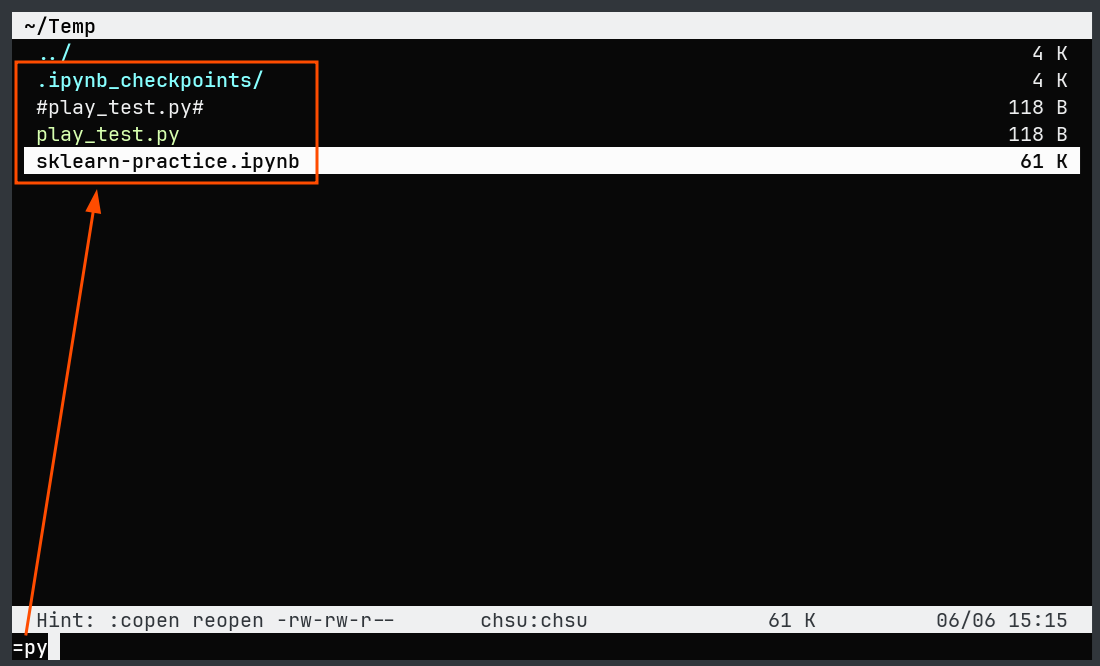
=<regex> creates a local filter:
- it keeps the items matching the filter
- it automatically resets when the directory is changed
Permanent Filter
The permanent filter is split into two parts:
zf- add the selected files to the permanent filter implicitly:filter <regex>- set the filter explicitly to filter out or hide matching files
Notice that the permanent filter behaves like a global option: even if we navigate to another directory, the permanent filter affects that directory as well.
Key bindings:
:filterorzO- clear the filters, including both explicit and implicit filters:filter!or:invert- invert the filter- So, if we’d like to use
:filteras the command to ‘keep’ specific items in one step, use:filter! <pattern_to_keep_item>
- So, if we’d like to use
:filter?- view the current filterFilter -- Flags -- Value Local Explicit ----> .*txt Implicit Press ENTER or type command to continue
The filter information below shows:
  Filter -- Flags -- Value
Local
Explicit    ---->    file2
Implicit    I        ^file1$|^dump\.txt$
Press ENTER or type command to continue
file2is set explicitly by:filter file2.file1anddump.txtare set implicitly byzf.- Setting an explicit filter with
:filter <regex>clears the implicit filter.
Sorting
There are two approaches to sorting:
:sort- set a simple global sorting orderset sort=<sort keys>- set a complex global sorting order
Notice that the sorting order affects all directories globally.
:sort for Simple Sorting Order
The :sort command shows the available sorting criteria to choose from.
![Sorting criterion]
C-nandC-pEmacs key bindings can be used.- Alternatively, simply use the shortcut letter.
Related comands
:invert o- invert the sorting order:invert? o- display the sorting order, either descending or ascending
set sort for Complex Sorting Order
The syntax is :set sort=<sort keys>, and the available keys are:
   [+-]ext     - extension of files and directories
   [+-]fileext - extension of files only
   [+-]name    - name (including extension)
   [+-]iname   - name (including extension, ignores case)
   [+-]type    - file type (dir/reg/exe/link/char/block/sock/fifo)
   [+-]dir     - directory grouping (directory < file)
   [+-]gid     - group id (*nix only)
   [+-]gname   - group name (*nix only)
   [+-]mode    - file mode (file type + permissions) in octal (*nix only)
   [+-]perms   - permissions string (*nix only)
   [+-]uid     - owner id (*nix only)
   [+-]uname   - owner name (*nix only)
   [+-]nlinks  - number of hard links (*nix only)
   [+-]inode   - inode number (*nix only)
   [+-]size    - size
   [+-]nitems  - number of items in a directory (zero for files)
   [+-]groups  - groups extracted via regexps from vifm-'sortgroups'
   [+-]target  - symbolic link target (empty for other file types)
   [+-]atime   - time accessed (e.g., read, executed)
   [+-]ctime   - time changed (changes in metadata, like mode)
   [+-]mtime   - time modified (when file contents is changed)
+- ascending order-- descending order
Notes:
- Multiple sorting keys can be set simultaneously, e.g.
:set sort=+size,-name. :set sortdisplays the current sort setting.
Configuration
The configuration file is located at:
- Linux:
~/.config/vifm/vifmrc - Windows:
$env.appdata/vifm/vifmrc
Bookmarks
The corresponding configuration section is shown below:
" ------------------------------------------------------------------------------

" :mark mark /full/directory/path [filename]

" mark b ~/bin/
mark h ~/
mark s ~/Sandbox/
mark l ~/Downloads/
mark o ~/Documents/
mark t ~/Temp/
In the configuration above, several directories are configured, so the '<mark> key binding navigates to the corresponding directory immediately.
File Handler
To open a file with the desired program, a file handler needs to be configured. The configuration contains many pre-configured file handlers for different file types, but those programs may not be installed on the OS. For example, to open PDF files with the zathura program:
" Pdf
filextype {*.pdf},<application/pdf> zathura %c %i &, apvlv %c, xpdf %c
In vifm, move the cursor to a PDF file and press Enter to open it with zathura. Notice that zathura needs to be installed on the OS.
File Previewer
Similarly, a file previewer needs to be configured so that file contents can be previewed with e and w.
fileviewer {*.7z},<application/x-7z-compressed> 7z l %c
Key bindings:
e- view the contents, instead of editing the fileeon a directory shows the tree structure of the directory. Notice: do NOT preview a directory containing many files/subdirectories. It may freeze the program.Enteropens a file instead of viewing its contents in vifm
w- view file/directory contents in the other paneShift + Tab- switch the cursor to the other pane to scroll through the preview contents- A single
Tabshifts the ‘focus’ to the other file pane. Remember that even if there is only one pane displayed, there are still two open panes under the hood.
- A single
wagain to exit preview mode
Metadata Columns
Metadata columns such as size, atime, etc. can be configured to display in the UI with the command below:
:set viewcolumns=<column_setting>
<column_setting> has the following format: [width][{name}].
[width]- can be either a number or-representing automatic sizing[{name}]- metadata columns to display; the supported columns are listed below{name}- filename{ext}- file extension{size}- file size{perms}- permissions (like-rwxr-xr-x){mtime}- modification time{atime}- access time{ctime}- change time{dir}- directory indicator (/for dirs){type}- file type indicator (/,@,|, etc.){target}- symlink target{nlinks}- number of hard links{inode}- inode number{uid}- user ID{gid}- group ID
Some examples
-{size}- automatic width for displaying the size of files6{name}- a width of 6 characters for displaying the name. If the file/directory name exceeds 6 characters, it is not truncated; the6is simply ignored-{name},-{size},-{mtime}- set multiple columns simultaneously
Interaction with Shell
:!<external_command> allows you to run external commands in vifm. The external command is executed in a shell. For example, create a README file with the command below:
:!touch README
echo $SHELL shows which shell program vifm uses.
Macros
Command macros are expanded to values at runtime. Two commonly used macros are shown below:
%c- the current file under the cursor%f- all selected files
To illustrate macros, use 7z with %f to create a ZIP file:
t- select the files and directories to be zipped!7z a <desired_zip_file_name> %f- compress the selected files and directories into a ZIP file